প্রতিবেদন লোড হচ্ছে…6 Chromebook Shortcuts That Save Time Every Day | Ayar News
Analytics Insight · সাধারণ
6 Chromebook Shortcuts That Save Time Every Day
10/27/2026
Take a Full Screenshot
Press Ctrl + Show Windows to capture your entire Chromebook screen instantly. The screenshot is saved automatically, making it ideal for saving receipts, sharing error messages, or keeping a quick record of important on-screen information.
Capture a Partial Screenshot
Use Shift + Ctrl + Show Windows, then drag to select only the area you need. This shortcut is perfect for cropping a chart, message, or image without editing the full screenshot later, helping you share cleaner visuals faster.
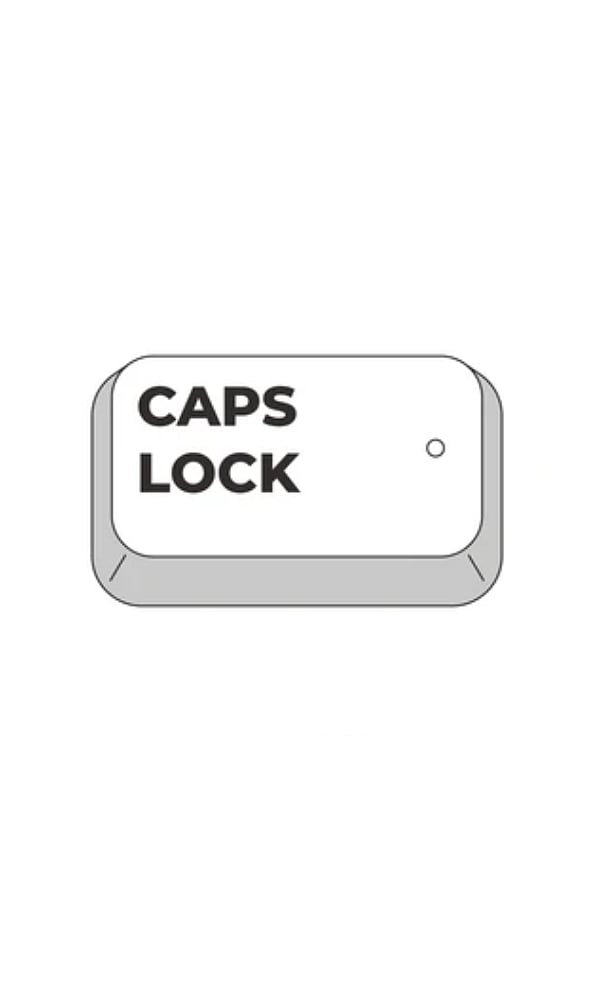
Turn Caps Lock On or Off
Chromebooks do not have a dedicated Caps Lock key. Press Search + Alt to enable or disable Caps Lock whenever you need to type headings, passwords, or capitalized text without changing your typing flow.
Open the Shortcut Helper
Press Ctrl + Alt + / to open ChromeOS’s built-in shortcut helper. It displays available keyboard shortcuts in one place, so you can quickly learn new combinations without searching through settings or online guides.
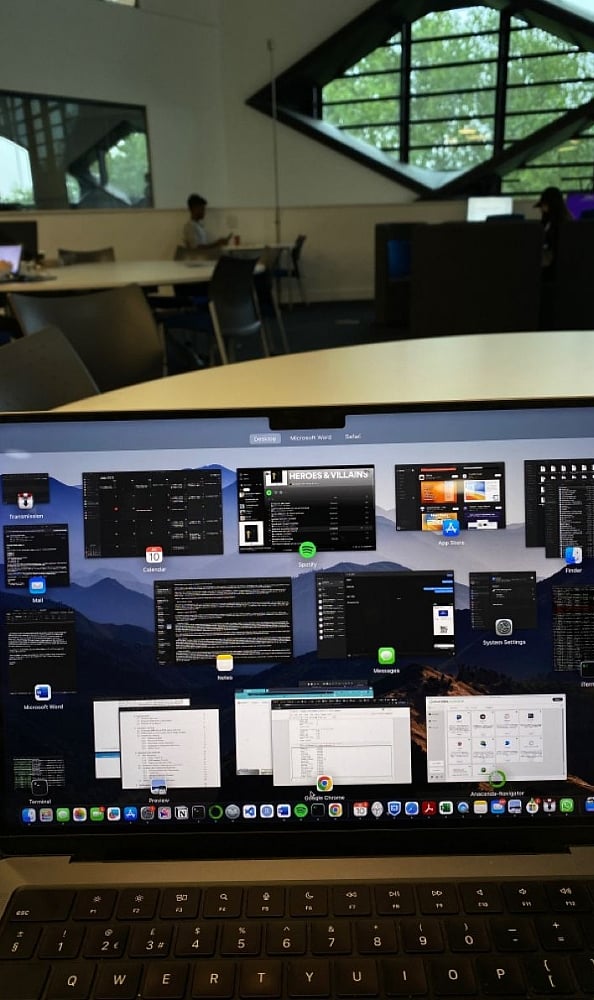
Switch Between Open Windows
Hold Alt and press Tab to move quickly between open apps and browser windows. This is especially useful when comparing documents, checking references, or switching between work and communication tools without reaching for the mouse.
Snap Windows for Multitasking
Press Alt + [ to snap the active window to the left side of the screen, or Alt +] to snap it to the right. Pair two apps side by side to write, research, or attend a video call while keeping everything visible.