

Parth, a seasoned tech writer, wields the keyboard (or pen) with finesse to unravel the intricacies of both Windows and Mac operating systems. He has covered evergreen content on mobile devices and computers for multiple publications over the last six years. You can find his work on AndroidPolice, GuidingTech and TechWiser. Whether it’s demystifying system updates, deciphering error codes, or exploring hidden features, Parth’s prose guides readers through the binary maze. When not immersed in tech jargon, you’ll find him sipping chai, pondering the next software review, and occasionally indulging in a friendly debate about mechanical keyboards.
Whether I am heading to a familiar destination, exploring a new city, or planning a long road trip, I rarely start my car without firing up Google Maps. Naturally, I assumed I had everything figured out. However, after digging deeper into the app’s settings, I realized I had been overlooking several useful options hiding in plain sight.
They aren’t necessarily groundbreaking additions, but they address some of my biggest frustrations with navigation and make Google Maps much more useful behind the wheel.
Create custom lists
My favorite places, neatly organized forever
I used to save random places in Google Maps without giving much thought to organizing them. Over time, my saved locations became a cluttered collection of restaurants, hotels, attractions, and other destinations. That’s when I started taking custom lists seriously.
Instead of dumping everything into Favorites or Want to go, I can create dedicated lists for weekend getaways, road trips, and more.
Getting started is straightforward. I simply head to the You tab in Google Maps, select New list, give it a relevant name, and start adding places. I can even assign custom icons, add descriptions, and share lists with friends and family.
It’s a simple organizational trick, but it has made Google Maps much more useful whenever I am planning my next outing.
Check nearby traffic from the home screen
Utilize Google Maps widgets

I have a habit of checking Google Maps before leaving home, even when I am heading somewhere familiar. After all, traffic conditions can change quickly, and the last thing I want is to get stuck in congestion unnecessarily.
However, opening Google Maps and manually checking traffic every single time isn’t convenient. That’s where the Nearby Traffic widget comes in. I can simply long-press my Galaxy’s home screen, open the Widget menu, find Google Maps, and add the Nearby Traffic widget. It gives me a quick overview of traffic conditions around my current location without opening the app. The familiar green, orange, and red indicators make it easy to spot congestion at a glance.
It’s handy before heading out during peak hours. One glance is often enough to decide whether I should leave immediately or check an alternative route.
Utilize Ask Maps
Let AI handle my travel questions

Google has been integrating Gemini throughout its services, and Ask Maps is easily one of the more interesting additions. Previously, whether I wanted to find a restaurant or plan an outing, I had to search for places, scroll through reviews, and manually compare options.
Ask Maps makes this process much more conversational. I can simply tap the Ask Maps button and describe exactly what I am looking for. For example, I can ask it to find a family-friendly vegetarian restaurant with convenient parking, or suggest interesting places to visit during a weekend road trip.
Instead of making me browse endless listings, Ask Maps brings together relevant recommendations, reviews, and location information. I can even ask follow-up questions to narrow down the suggestions. This is one Google Maps feature I can see myself using frequently.
Set arrival and departure times
A handy productivity trick
One of the biggest frustrations with navigation apps is that they typically show travel times based on current traffic conditions. That’s useful when I am leaving immediately, but what if I have a hotel check-in at 2pm or an important appointment later in the day?
Thankfully, Google Maps has a clever option for such situations. After entering my destination and selecting Directions, I can open the three-dot menu and choose Set departure or arrival time. I usually prefer setting my desired arrival time and letting Google Maps estimate when I should leave based on expected traffic conditions. Of course, these are predictions, not guarantees, so I still leave some buffer for unexpected delays.
Set the default music player in Google Maps
My music, my route, zero distractions
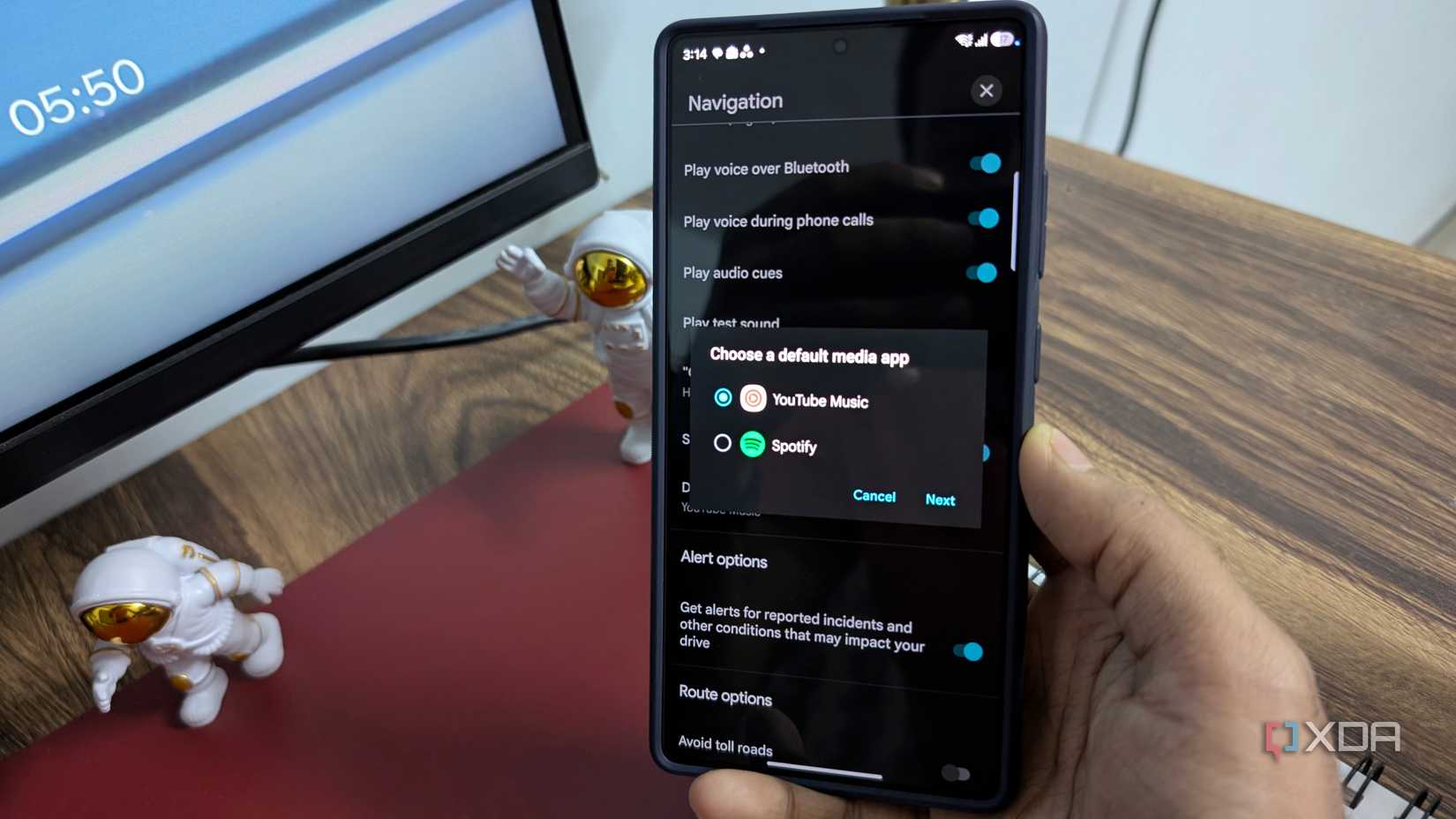
I rarely drive without listening to music, whether it’s my favorite playlist or a collection of downloaded tracks. However, constantly switching between Google Maps and a music app on my phone isn’t convenient. That’s why I appreciate the option to integrate a compatible music player directly into Google Maps.
I can open Settings > Navigation > Show media playback controls and select a supported service such as Spotify or YouTube Music.
Once configured, Google Maps displays playback controls within the navigation interface. I can pause, play, or skip tracks without jumping between apps. This setting is especially useful when navigating directly on my phone.
It doesn’t replace Android Auto’s separate music controls, but it’s a welcome convenience for phone-based navigation.
My everyday drives feel much smarter
From organizing my favorite destinations with custom lists and checking nearby traffic before leaving home to planning the perfect departure time, these little changes have made my driving experience much more convenient.
If you are still using Google Maps with its default setup, I highly recommend exploring its menus and experimenting with these overlooked tools.