
Maker, meme-r, and unabashed geek, Joe has been writing about technology since starting his career in 2018 at KnowTechie. He's covered everything from Apple to apps and crowdfunding and loves getting to the bottom of complicated topics. In that time, he's also written for SlashGear and numerous corporate clients before finding his home at XDA in the spring of 2023.
He was the kid who took apart every toy to see how it worked, even if it didn't exactly go back together afterward. That's given him a solid background for explaining how complex systems work together, and he promises he's gotten better at the putting things back together stage since then.
Nvidia took the chip from its DGX Spark, put it in a Windows laptop, and called it RTX Spark. On paper, it's the local AI laptop I've wanted for years: up to 128GB of unified memory, CUDA, and a chip that was already here under a different name. I've spent the past week running models on a Lenovo Yoga 9n 2-in-1 with 64GB, along with games and other tasks.
It's a seriously capable machine. But a few things only showed up once I started loading models and poking at memory settings, and none of them are obvious from a spec sheet. Sure, you don't need an expensive GPU to run a local LLM, but if you're spending $3,000 or more on one of these, most of them get decided the moment you hit checkout.
Your memory choice decides which models you can run
Forever, because the RAM is soldered-on
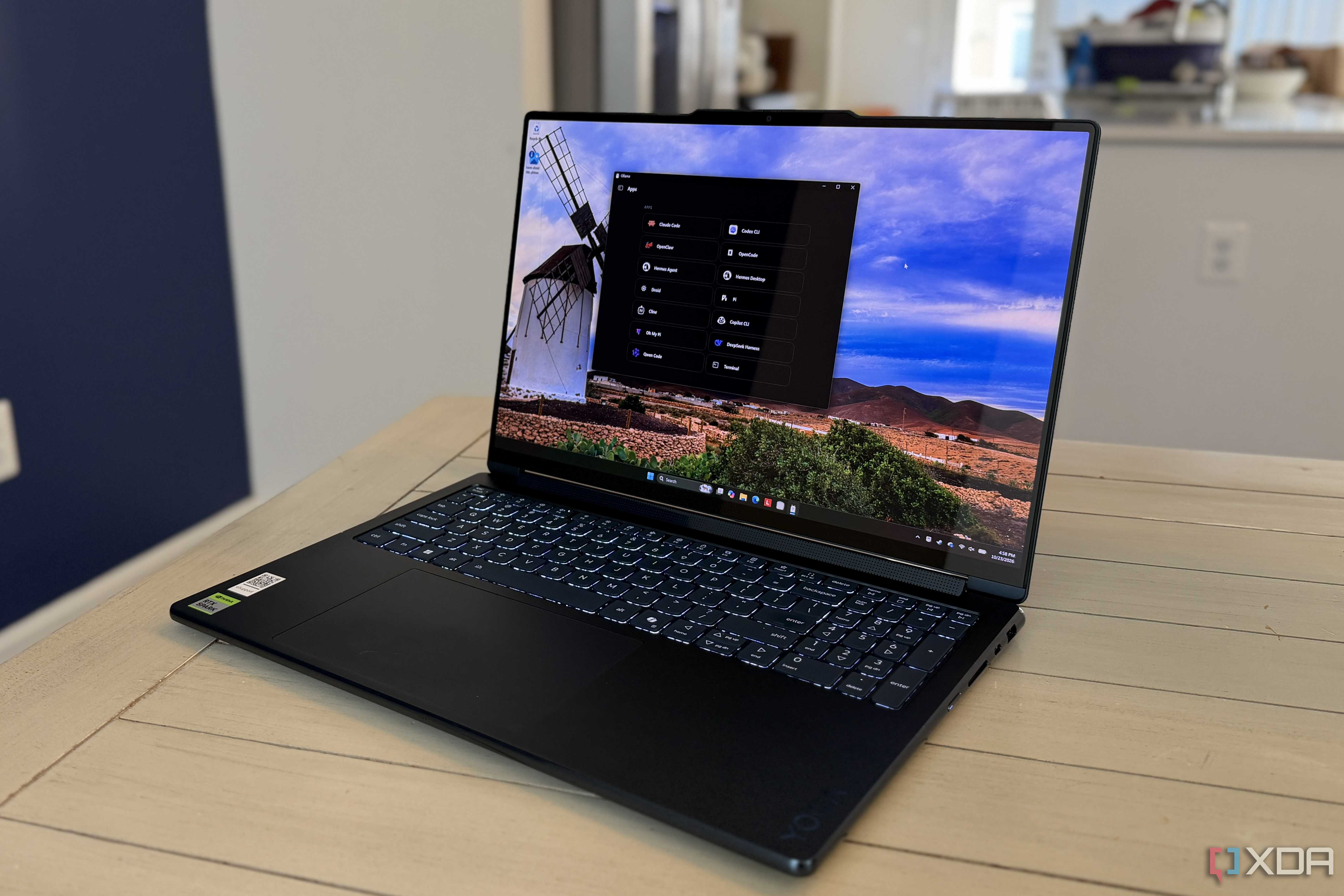
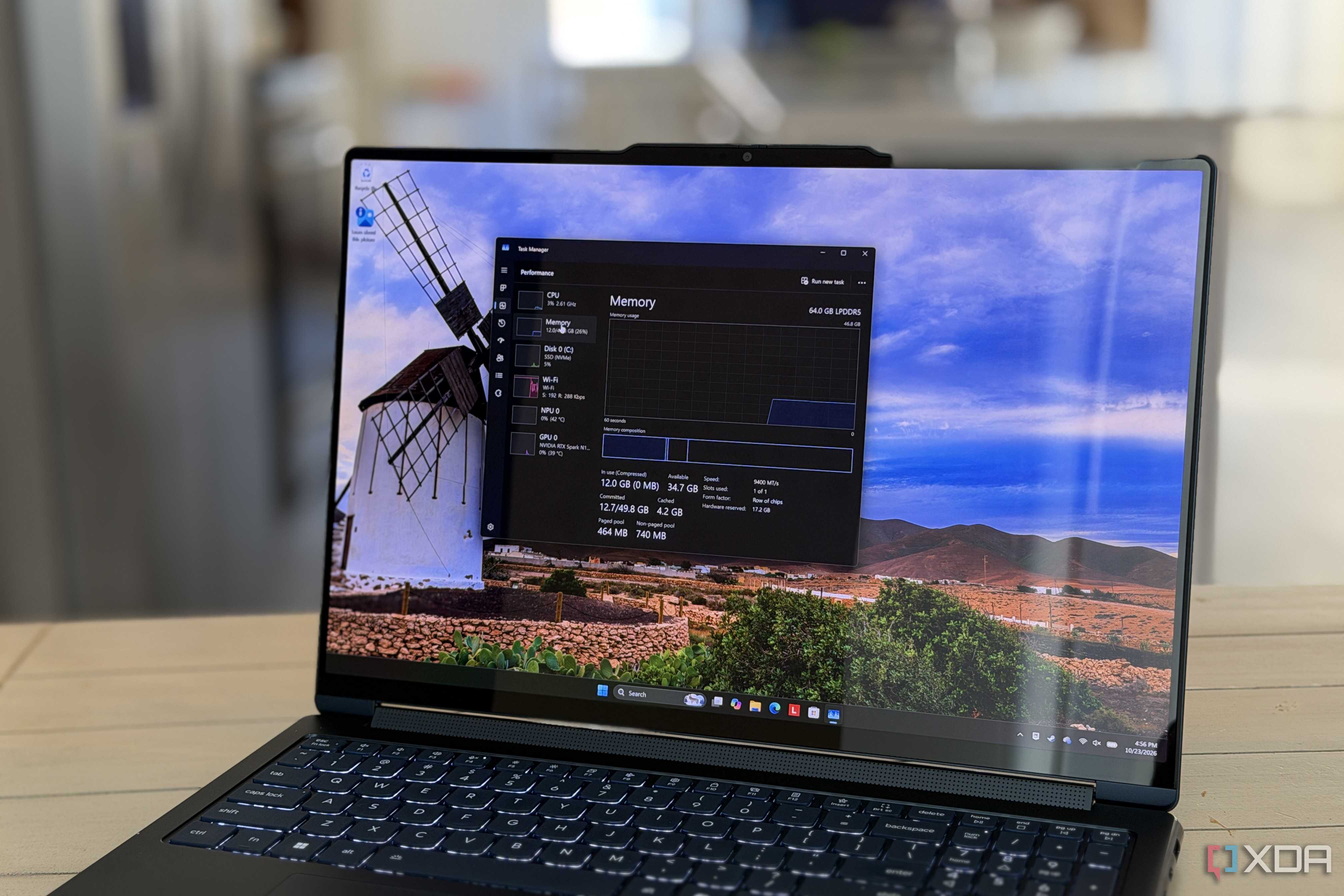
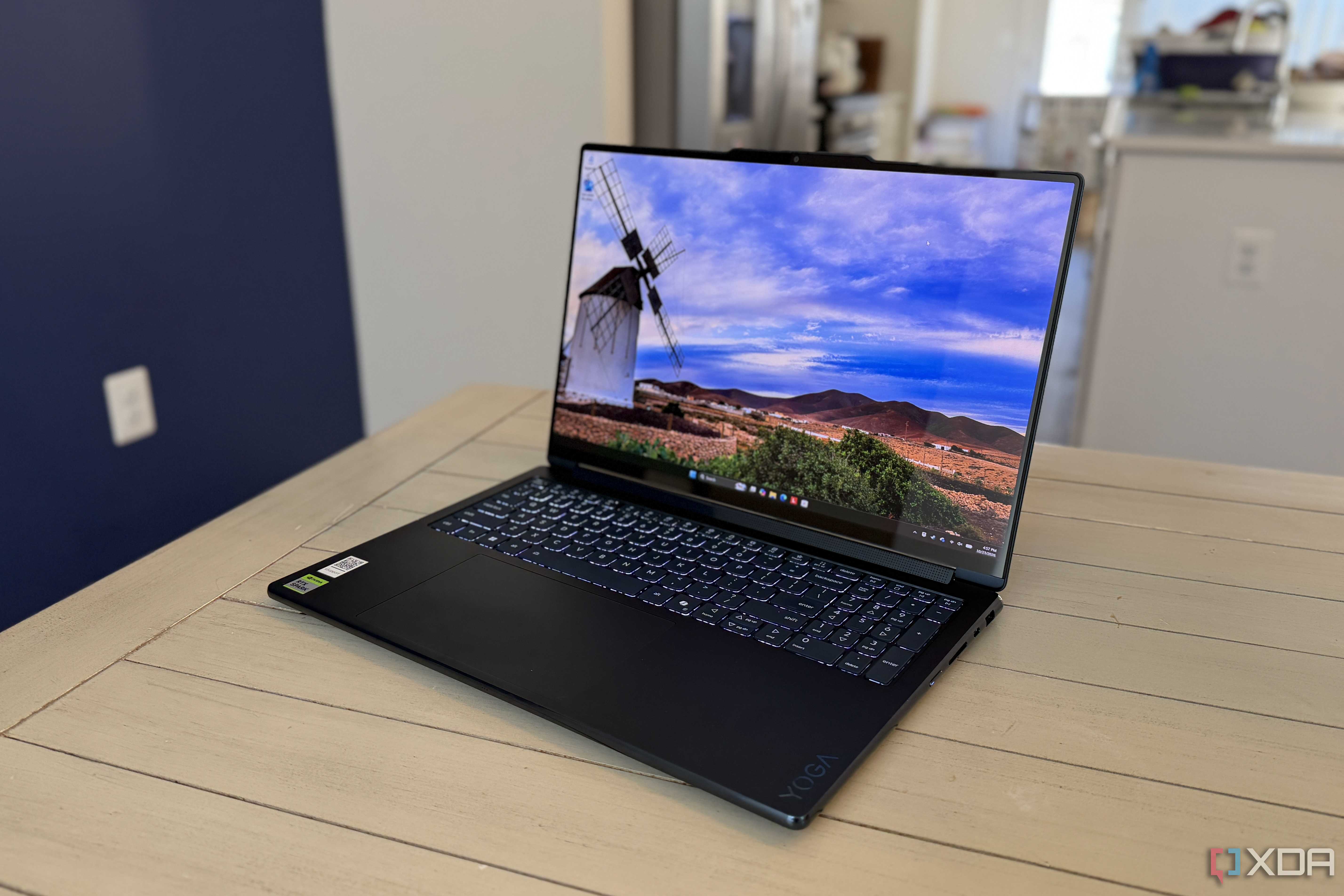
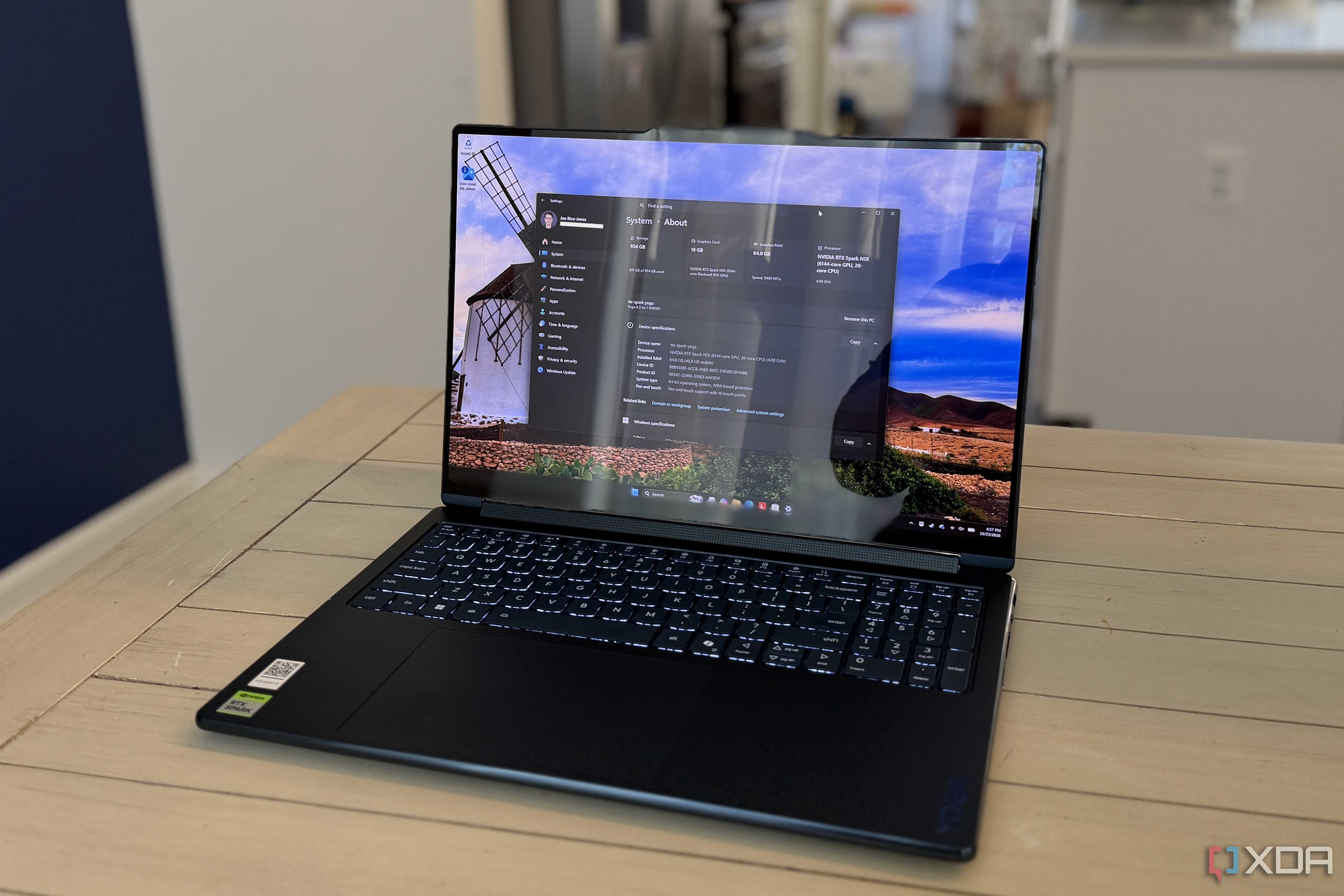
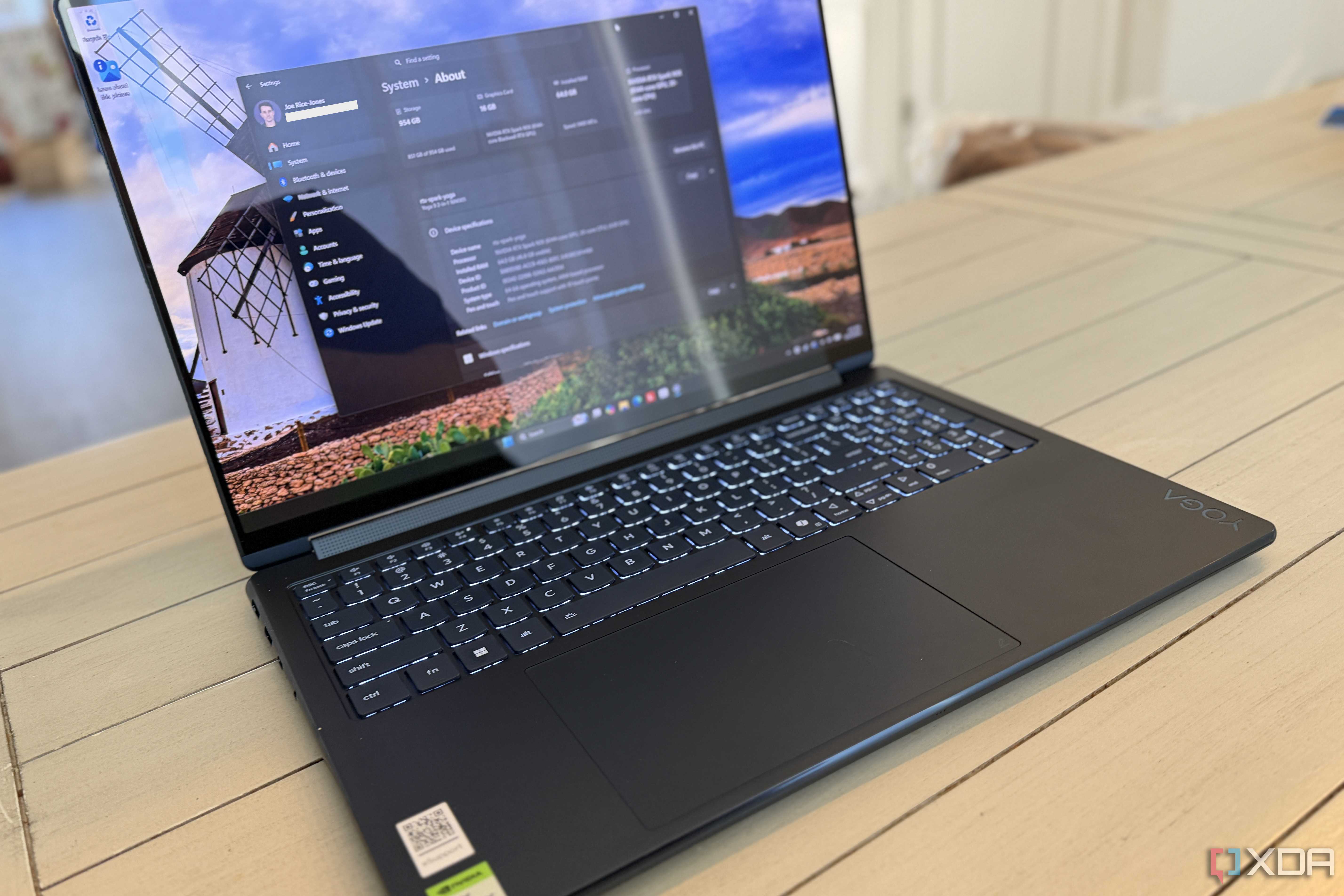
RTX Spark's memory is soldered to the board, so whatever you pick at checkout is what you live with. The chip also comes in two tiers, and the cheaper one, with an 18-core CPU and 5,120 GPU cores, tops out at 64GB, while the full 20-core version goes up to 128GB.
The laptop matters as much as the chip. My Yoga 9n 2-in-1 has the full 20-core chip, 64GB, and 1TB for about $3,750. Microsoft's Surface Laptop Ultra with the same chip, memory, and storage costs $4,300, but it offers 128GB for $5,900. Sure, the Yoga is cheaper and takes a pen on its screen and touchpad, which the Surface doesn't, but it can never grow past 64GB.
That ceiling is real for models. On my unit, the biggest GPU memory total Windows reported was 55.4GB, at the 48GB split (48GB dedicated plus 7.4GB shared), which is plenty for a 32B model but nowhere near the roughly 65GB that gpt-oss-120b needs for its weights alone. Buy for the models you'll want in two years, not the ones you run today.
The memory split in the Nvidia app isn't the limit it appears
Maybe for gaming use, but local LLMs work differently
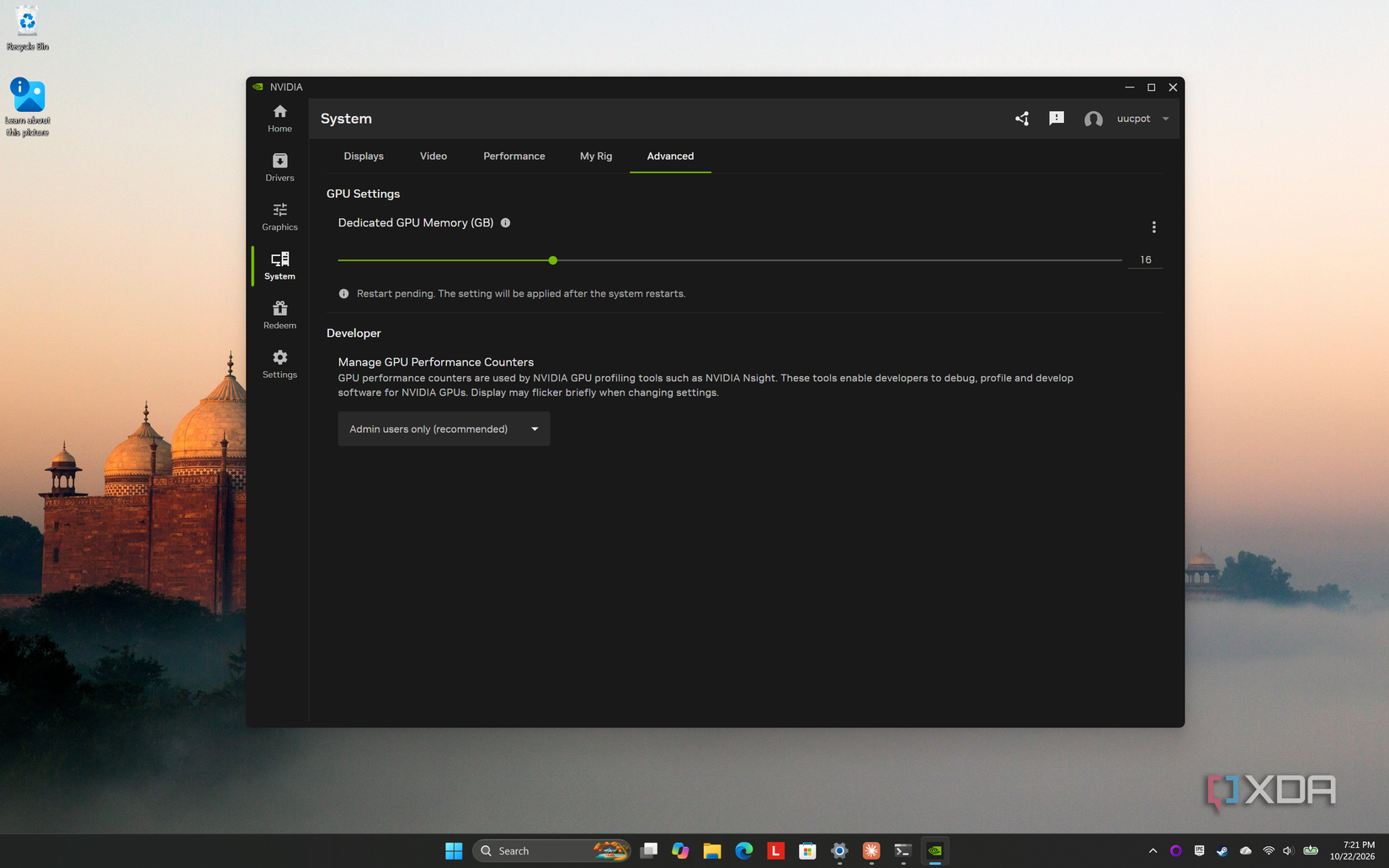
The Nvidia app lets you divide RTX Spark's unified memory between the GPU and the CPU, and the obvious assumption is that the GPU number is your VRAM. It isn't, quite. With the split at 16GB for the GPU, Ollama loaded Qwen3 32B at 28GB and reported 100% GPU, and Task Manager showed 15.8GB in dedicated GPU memory plus 12.9GB in shared memory.
That lines up with Nvidia's porting guide, which describes a dedicated slice plus shared system memory the GPU can also use. So I moved the split to 48GB, rebooted, and ran the same prompt again.
|
16GB GPU split |
48GB GPU split |
|
|---|---|---|
|
Dedicated GPU memory used |
15.8GB of 16GB |
29.8GB of 48GB |
|
Shared GPU memory used |
12.9GB of 30.8GB |
0.7GB of 7.4GB |
|
Windows memory in use |
26.0GB of 46.8GB |
12.7GB of 14.8GB |
|
Generation speed |
11.8 tokens/s |
12.1 tokens/s |
The catch is that a bigger GPU slice leaves Windows with less. At 48GB, Windows had 14.8GB to work with and was already 86% full with the model loaded, all for about 3% more speed on a warm run. The split only changes what fits at the edges, since Windows reported a GPU memory total of 46.7GB at the 16GB split and 55.4GB at 48GB. I'm keeping the GPU at 16GB, and unless a model only fits with the bigger share, I'd lean toward Windows too.
Smart App Control blocks a lot of local AI tools
Signed apps only, by default
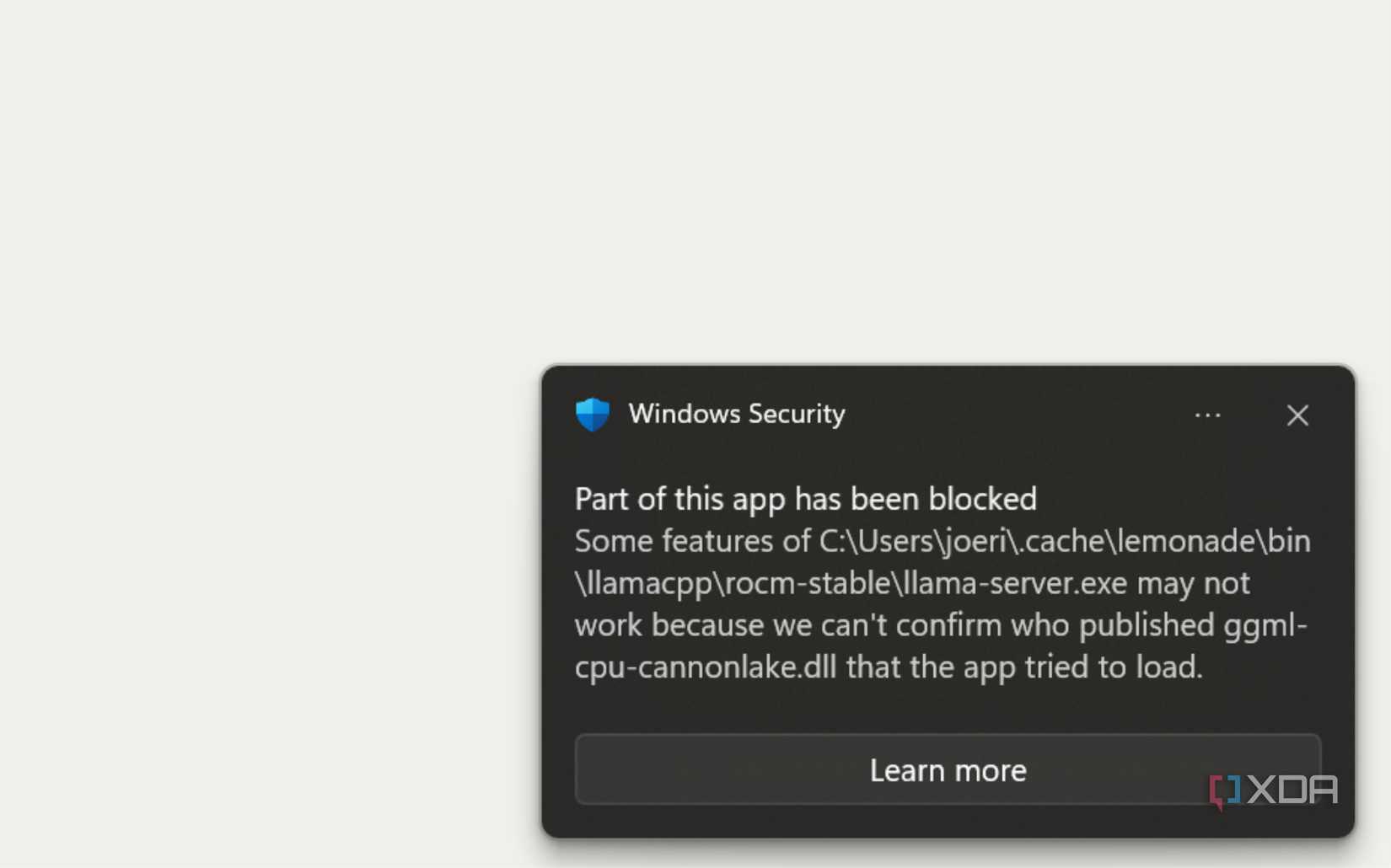
A fresh Windows 11 install can come with Smart App Control turned on, and it only lets apps run if they're signed or Microsoft's cloud service judges them safe. That's awkward for local AI, where plenty of tools ship as GitHub zips. While testing RTX Spark against Strix Halo, it blocked current Lemonade builds and unsigned llama.cpp releases on both laptops, and Ollama was the only tool that ran on both.
The strangest part is that an older Lemonade release ran fine, while the current one didn't. In my case, an update to a tool that already worked was the thing that got stopped. Smart App Control is switched on for my Yoga in Windows Security, and the option to go back to evaluation mode is grayed out, so there's no easy middle ground once it's enforcing.
You can check yours in Windows Security -> App & browser control -> Smart App Control, and that's also where you turn off Smart App Control. Microsoft says recent updates let you switch it back on without a clean install, so it's no longer a one-way decision. I'm leaving mine on, but decide before you build your toolchain.
CUDA on Windows on Arm is still version 1
CUDA works, your stack might not

Nvidia only brought CUDA to Windows on Arm this year, with CUDA 13.4, and it arrived scoped to RTX Spark devices as a developer preview. My Yoga's driver now reports CUDA 13.5, and the basics are solid, since Ollama ran a 28GB model on the GPU without any fuss.
The trouble starts further down the stack. During the preview, Nvidia warned that some PyTorch development workflows could trigger GPU timeouts, and vLLM has no native Windows support at all (via LeCompute). Nvidia's counterpoint is that 97% of the top 15,000 Python packages are supported, which sounds great until your project depends on the other 3%.
So before you buy, list every piece of your stack, from custom ComfyUI nodes to compiled extensions and training tools, and check each one for an Arm64 build. Adding the Architecture column in Task Manager's Details tab shows which of your apps already run natively and which run under emulation. And if something refuses to work on Windows, WSL2 is Microsoft's answer, which brings me to Linux.
Linux works, but Nvidia isn't the one making it work
Same chip, different support

Here's the part that stings. The GB10 chip behind RTX Spark runs Ubuntu-based DGX OS in Nvidia's DGX Spark, but RTX Spark laptops ship with Windows only, and Nvidia hasn't announced Linux support for them at the time of writing. When computingforgeeks checked, Nvidia's public Linux driver release (615.71.09) listed the GB10 but not the laptop chip's device IDs (via computingforgeeks).
That hasn't stopped people. Josephine Pfeiffer got Arch Linux ARM running on a 128GB Asus ProArt P16, and it took Nvidia's Ubuntu kernel work, ACPI overrides built from the laptop's own tables, a patched keyboard driver, and a custom audio driver. CUDA saw about 116GiB, and vLLM ran a Qwen model at around 31 tokens per second. It's impressive, but it's one person on one laptop, so treat it as a proof of concept.
WSL2 is the realistic route, and it worked well on my Yoga. Ubuntu 24.04 runs natively on Arm, the GPU shows up inside WSL2, and WSL2 saw exactly the GPU memory I'd set in the Nvidia app at both 16GB and 48GB. The catch is RAM, because WSL2 only takes half of what Windows has by default, so raise the limit in the .wslconfig file in your user folder. This example assumes a 16GB GPU split, where Windows has about 47GB:
The RTX Spark platform is great, if you know what you're getting into
Nothing here is a deal-breaker. RTX Spark is still the most capable Windows laptop I've used for local AI, and having CUDA on a laptop with this much memory is a big deal. But most of these catches get decided at checkout or on day one, so they're worth thinking about before the box arrives.
Pick your memory for the models you'll want in two years, only give the GPU a bigger share if a model won't fit otherwise, and check your Python stack for Arm64 builds. Decide what to do about Smart App Control before you install anything, recheck it after updating your tools, and treat Linux as a nice surprise rather than a plan. What would you want to see running on one of these? Let me know in the comments.