
If you use Gmail, Google Photos, and Google Drive, chances are you live within the Google ecosystem. If you own a MacBook, iPad, iPhone, and Apple Watch, and have naturally gravitated toward Apple Mail, iCloud, and the rest of Apple's services, you're probably more invested in the Apple ecosystem. Similarly, if you rely on Outlook, OneDrive, OneNote, and Microsoft 365, you're likely more comfortable within Microsoft's ecosystem.
However, one app that isn't necessarily tied to whichever ecosystem you've chosen is your maps app. You could be completely invested in Apple's ecosystem and still prefer Google Maps over Apple Maps. In fact, Google Maps is one of those apps that seems to transcend ecosystems altogether.
I've been using Google Maps for years, and at this point, I'd like to think I know my way around it pretty well. But every now and then, I stumble upon a feature I had absolutely no idea existed, and it makes me wonder what else I've been missing out on.
I now use Lists for just about everything
Who knew Google Maps could be this organized?
This is a feature I recently wrote a more in-depth article on, but a feature I didn't use to its full potential for years is Lists. Just as the feature's name suggests, a List gives you a way to group places you save on Google Maps into custom collections. Now, you likely use Lists already, even if you don't realize it. Whenever you save a place to your Favorites, Want to go, or Starred places, you're technically adding it to a List.
However, what I didn't realize for the longest time is that you can create your own custom Lists, too. For example, you could have one for restaurants you've been meaning to try, another for your favorite coffee shops, and one for places you want to visit on your next trip. You can even add notes to individual places and share entire Lists with other people.
To create a list in Google Maps, all you need to do is head to the You tab in Google Maps, tap New list, decide on a name and description, and you're good to go! You can now add anything and everything you find on Maps to your custom list by tapping Save on its Google Maps page and selecting the list you created.
Every place you save is also automatically pinned directly on your map, and you can even customize your Lists with different icons to make it easier to tell them apart at a glance. This lets me "emoji-code" my saved places, so my map is much easier to scan at a glance. I use different emojis for restaurants, cafés, train stations, shopping, tourist spots, and so on.
Arrive by helps me plan my journeys backward
I've been figuring out when to leave the hard way

I know this isn't a habit to be proud of, but I'm always running late. Well, I'd like to label it as fashionably late, but late regardless. This is a habit I've been actively working on, but my approach has usually relied heavily on instinct and experience.
For example, if I need to be somewhere by 3 PM, I'll typically estimate how long it'll take me to get there, factor in a little extra time for traffic, and decide when I need to leave accordingly. The problem is that traffic isn't always predictable, and what might be a 20-minute drive one day could easily take twice as long the next.
This is where Google Maps' Arrive by feature comes in handy. Instead of figuring out when to leave yourself, you can simply tell Google Maps what time you need to reach your destination, and it'll work backward to estimate when you should leave based on expected traffic conditions.
To use it, simply enter your destination in Google Maps, tap Directions, and then tap the three-dot menu in the top-right corner. Select Set depart or arrive time, switch to Arrive, and enter the date and time you need to be there. Google Maps will then show you an estimated travel time and the time you should leave.
It's such a simple feature, but as someone who has spent years trying to calculate the perfect time to leave in my head, it's one I really wish I'd started using sooner.
Popular times tells me when not to go somewhere
Google Maps knows when a place isn't worth the crowd

If there's one thing I hate more than traffic on the roads, it's traffic at the places I'm actually trying to get to. In other words, crowds. It's no fun heading somewhere expecting to have a good time, only to find the place so packed that you spend more time navigating through people than actually enjoying yourself.
While traffic is something I can usually account for before leaving the house, figuring out how crowded a place will be isn't always as straightforward. That's where Google Maps' Popular times feature comes in handy. It gives you an idea of how busy a place typically gets throughout the day. When you look up a business like a cafe, restaurant, or shopping mall, you may see a bar graph pop up showing its busiest and quietest hours. This is based on aggregated, anonymized location data from Google Maps users.
It also shows you how busy a place is in real time, provided there's enough data available. This means you don't necessarily have to rely on historical trends to figure out whether it's a good time to visit. You can simply check how crowded a place is right now and decide whether it's worth heading there.
For some places, Google Maps even shows estimated wait times and how long people typically spend there. You can also switch between different days of the week to compare how busy a place gets, which is particularly useful if you're planning a visit in advance.
Though these estimates aren't always going to be perfectly accurate, they've saved me from heading to crowded places more times than I can count.
Know Before You Go helps me stay one step ahead
I get the inside scoop before I even arrive
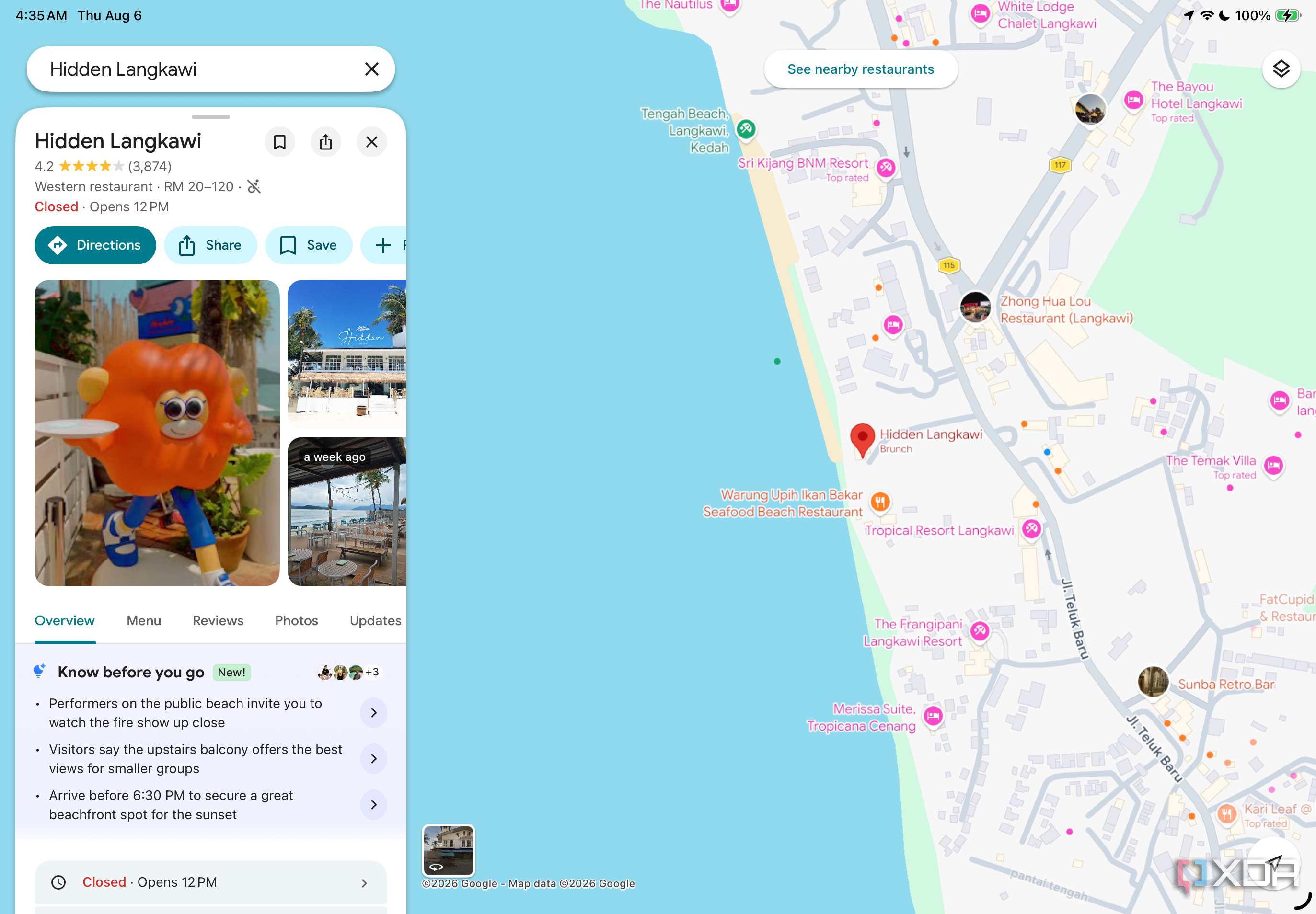
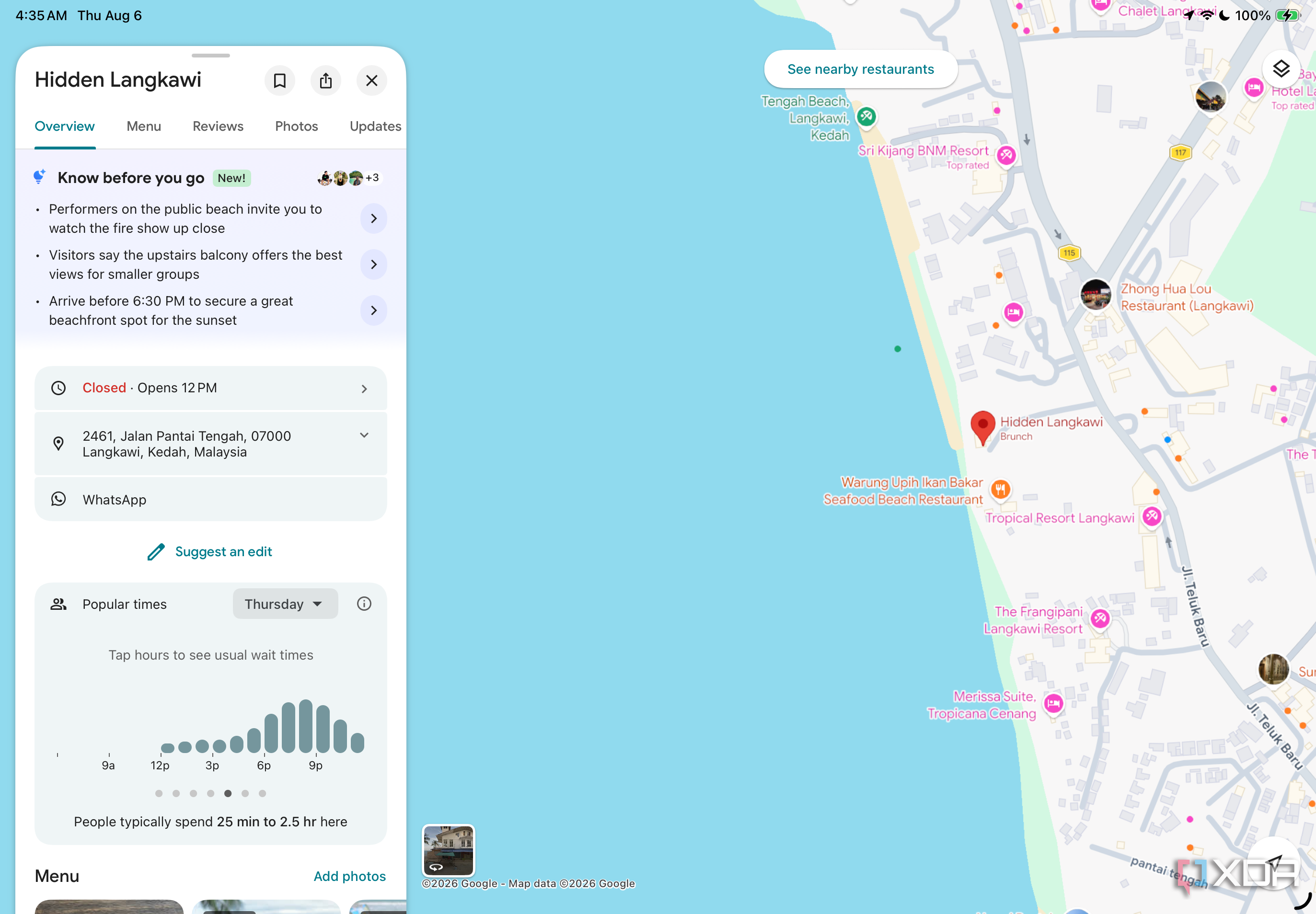
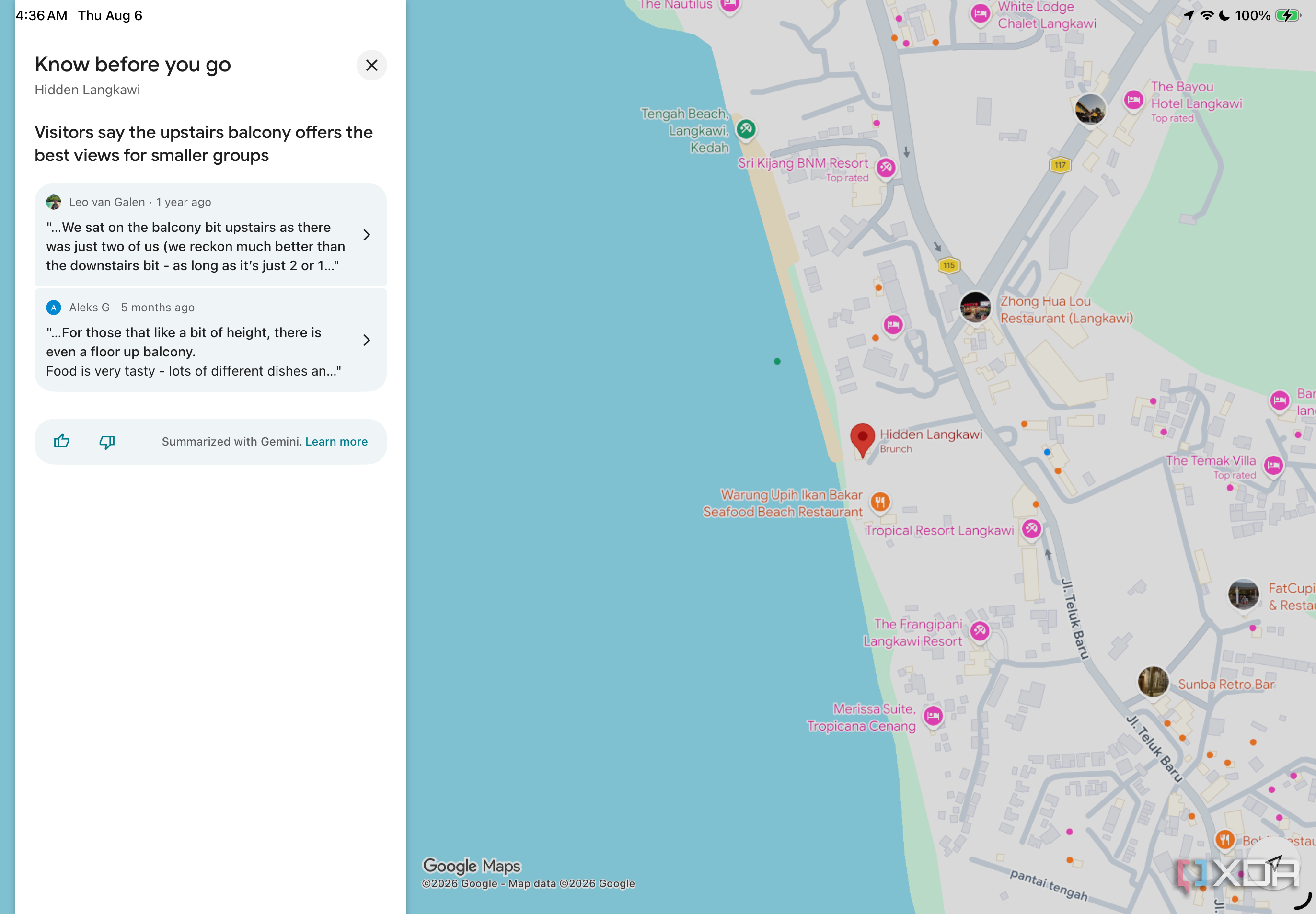
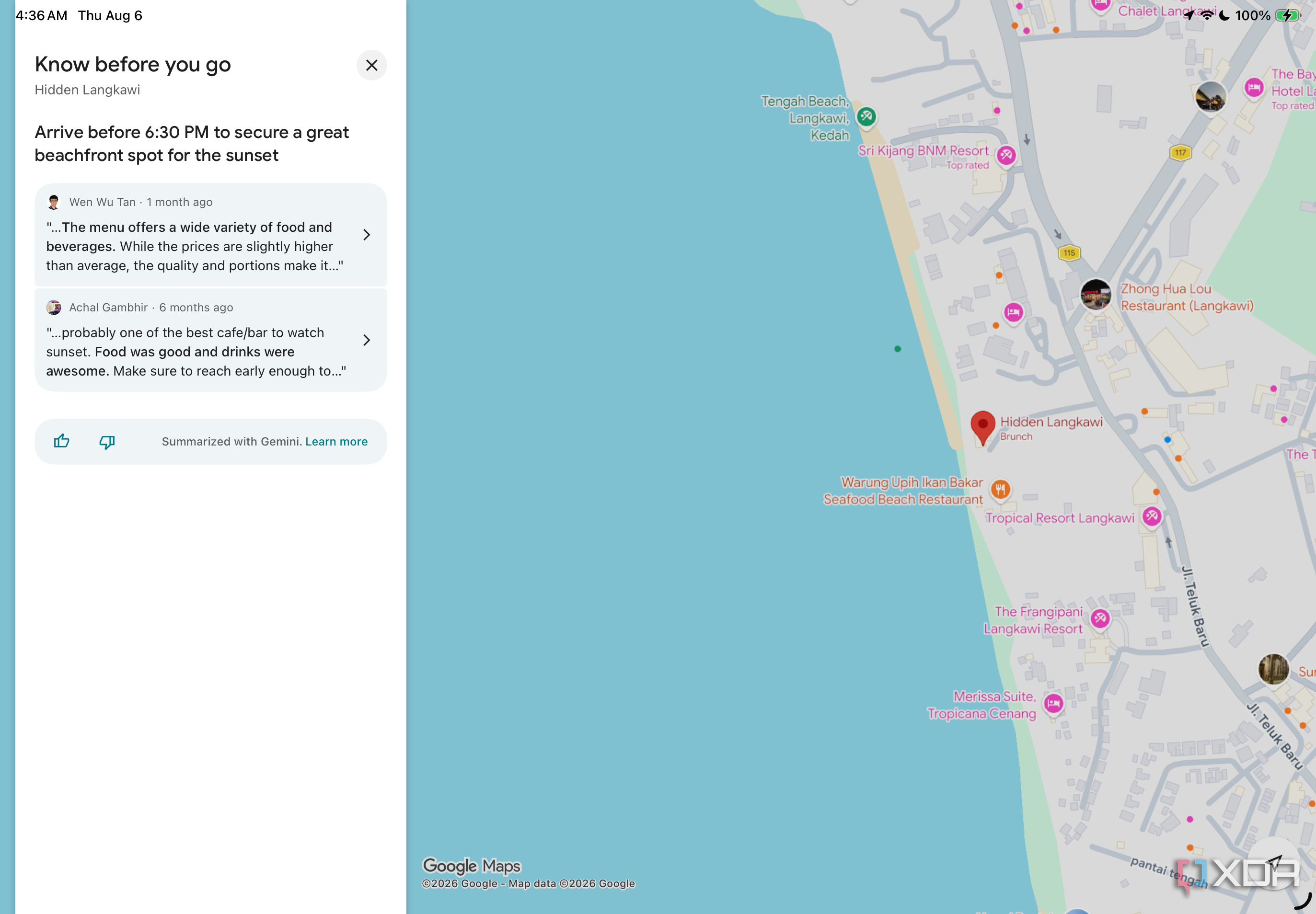
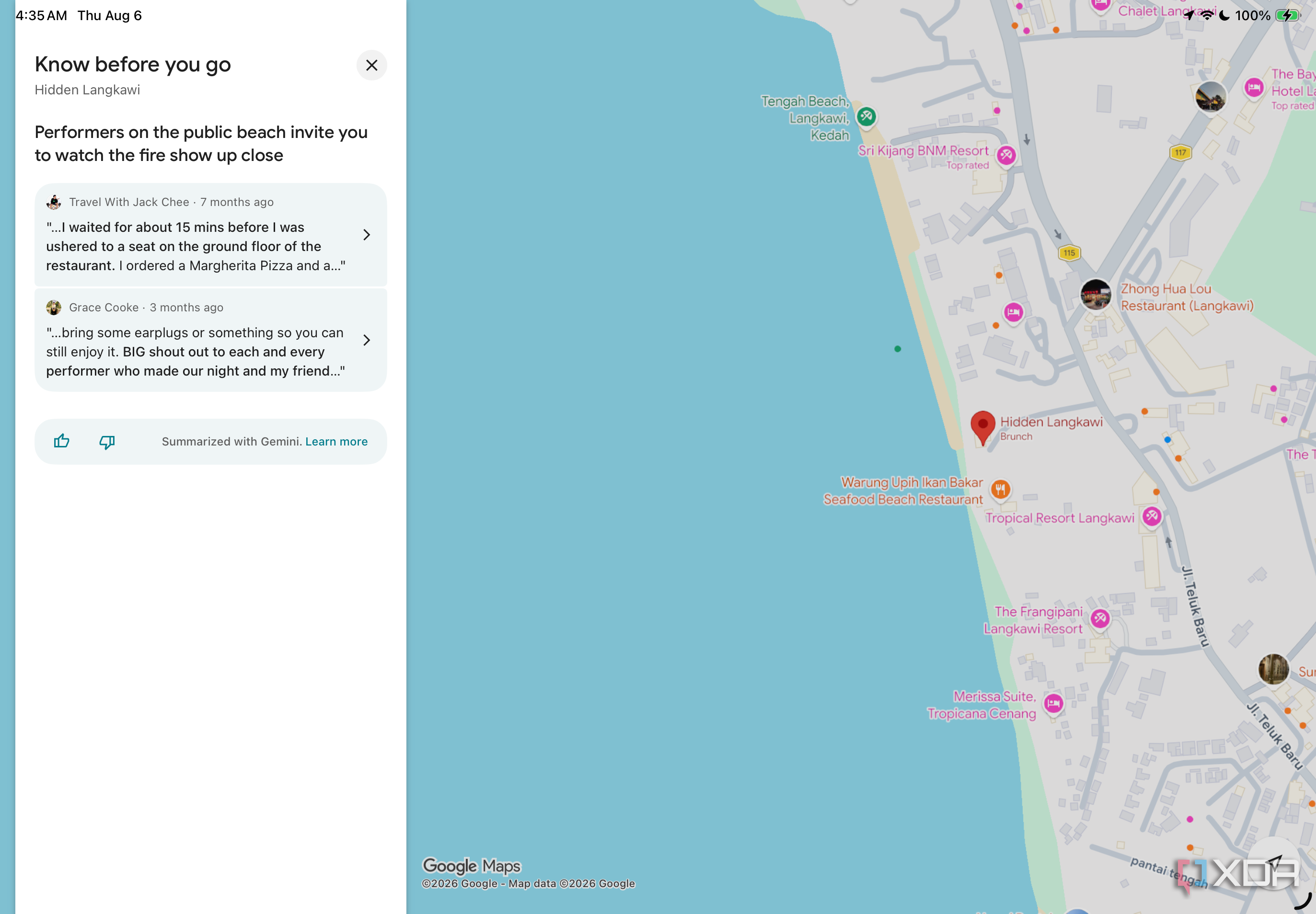
This is a relatively new feature, so I'm not necessarily to blame for not discovering it years ago. That said, Know Before You Go is one of Google Maps' Gemini-powered features, and it's an excellent way to figure out everything you need to know about a place before actually visiting it.
When you look up a restaurant, hotel, or concert venue in Google Maps, you may see a section labeled Know before you go. Using Gemini, Google Maps pulls information from user reviews and other sources across the web and condenses it into a handful of useful tips. These could include anything from where to park and whether you need a reservation to menu items worth trying and the best time to visit.
The best part is that you don't just have to take Gemini's word for it. You can tap on individual tips to see more details, including the reviews they were drawn from.
I actually discovered this feature while traveling, and it ended up being far more useful than I expected. At one point, I was planning to visit a beachfront restaurant just 15 minutes before sunset, but Know Before You Go suggested arriving a full hour earlier to secure a good spot. It even helped me discover a fire show nearby that I otherwise wouldn't have known about.
It's a small addition to Google Maps, but one that can save you quite a bit of research, especially when you're somewhere unfamiliar.
You can search for places without abandoning your route
There's room for a coffee stop along the way
You know when you're on your way somewhere and think, "Hey, I could probably pick this up on the way," but aren't really sure whether there's a place nearby that wouldn't require a massive detour? Or when you're heading somewhere unfamiliar and suddenly feel like grabbing a coffee, but don't want to go through the hassle of searching for a café and figuring out whether it's actually on your way?
Google Maps has a feature exactly for that called Search along route. It's a bit hidden away, so I wouldn't be surprised if you've never noticed it before. To find it, start navigating to your destination as you normally would. Once navigation begins, swipe up on the panel at the bottom of your screen that shows your estimated arrival time, distance, and travel time.
You'll see an option labeled Search along route. Tap it, and Google Maps will bring up a search bar, along with a few suggestions like convenience stores, ATMs, coffee shops, and restaurants. You can either choose one of these categories or search for something specific. Google Maps will then show you relevant places along your route, so you can find somewhere to stop without having to abandon your original destination. Once you've found a place that works, you can add it as a stop and continue your journey.
I didn't realize Google Maps could take me inside buildings
Google Maps can help me find my way inside, too
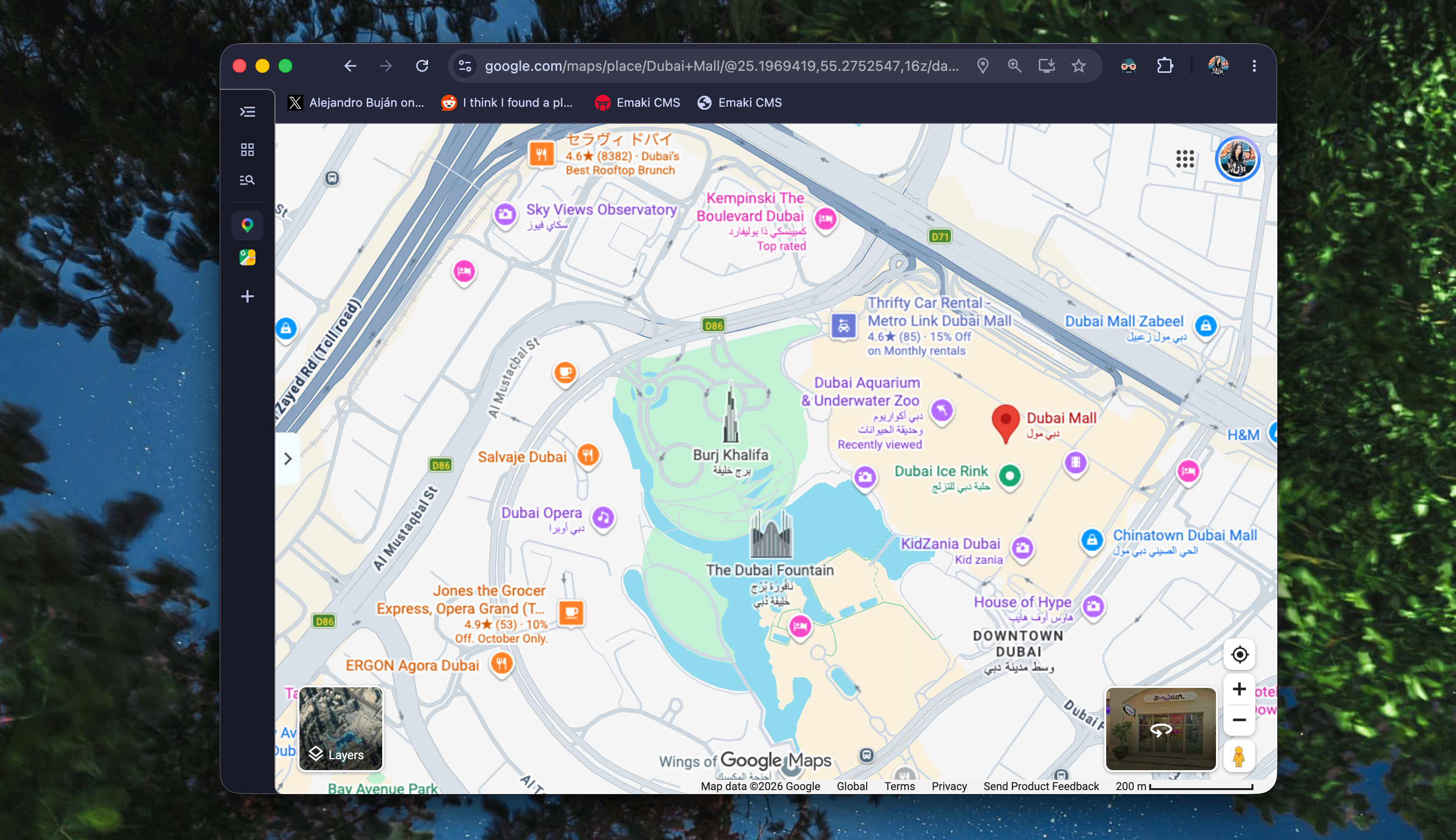
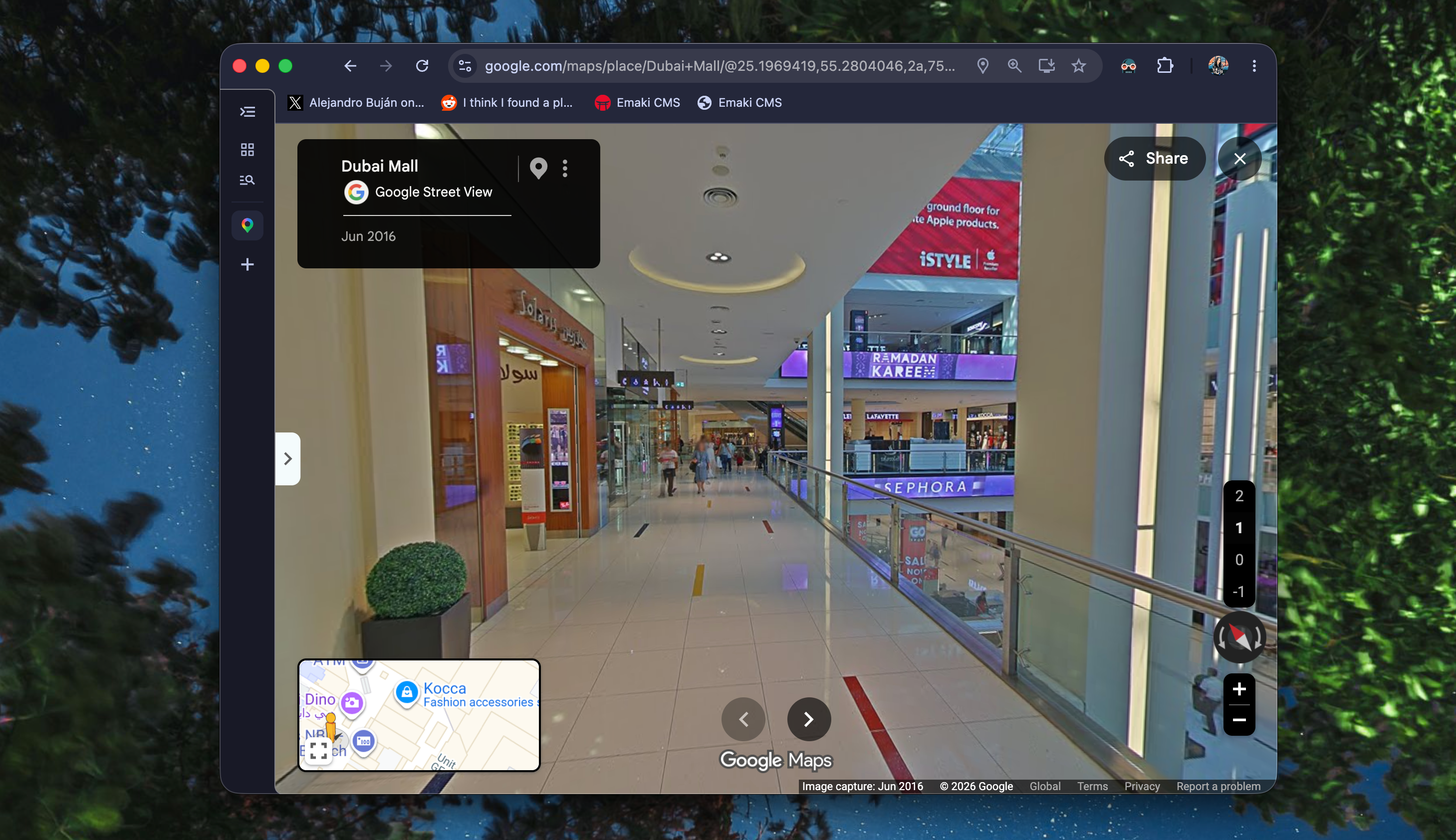
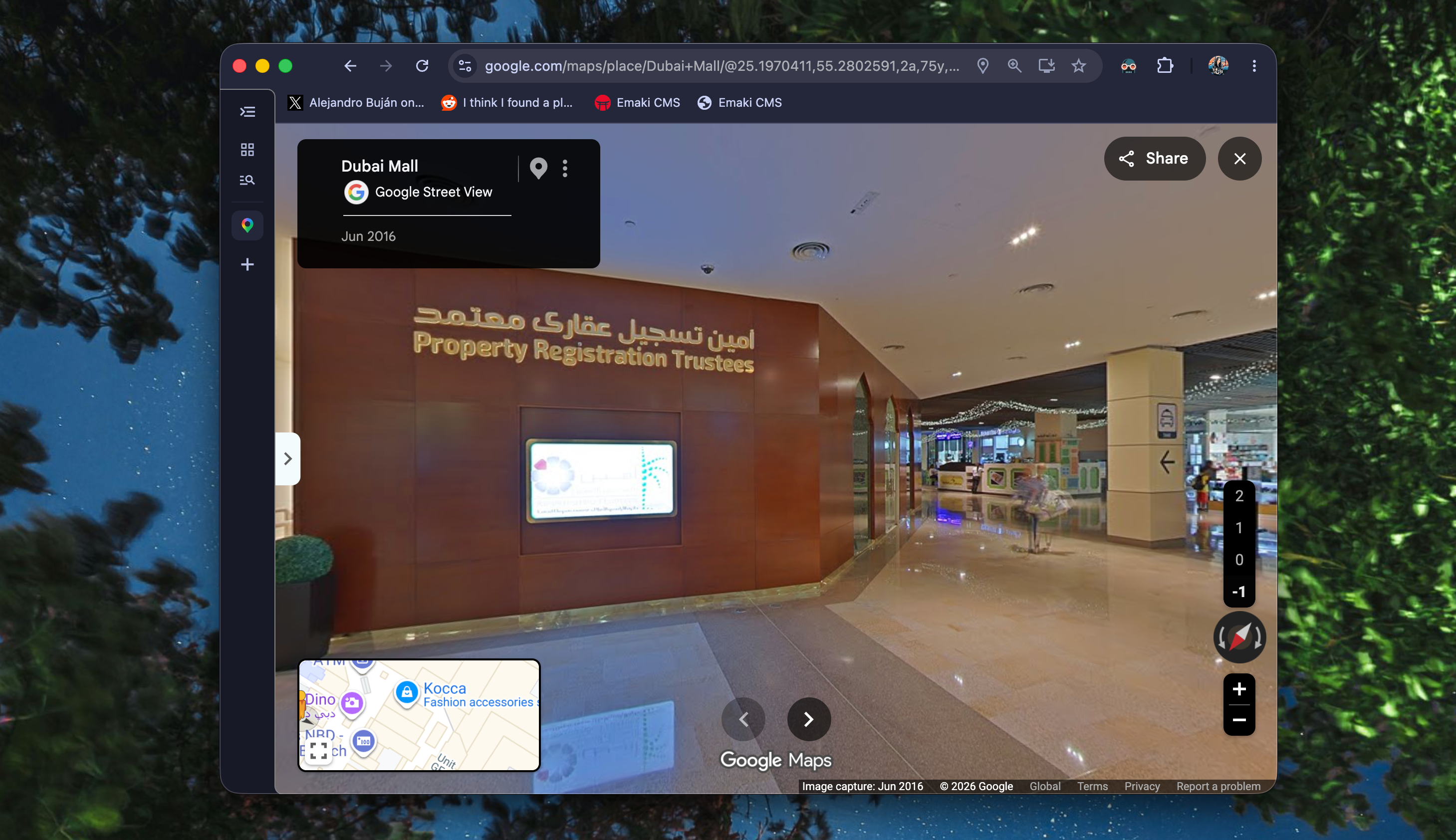
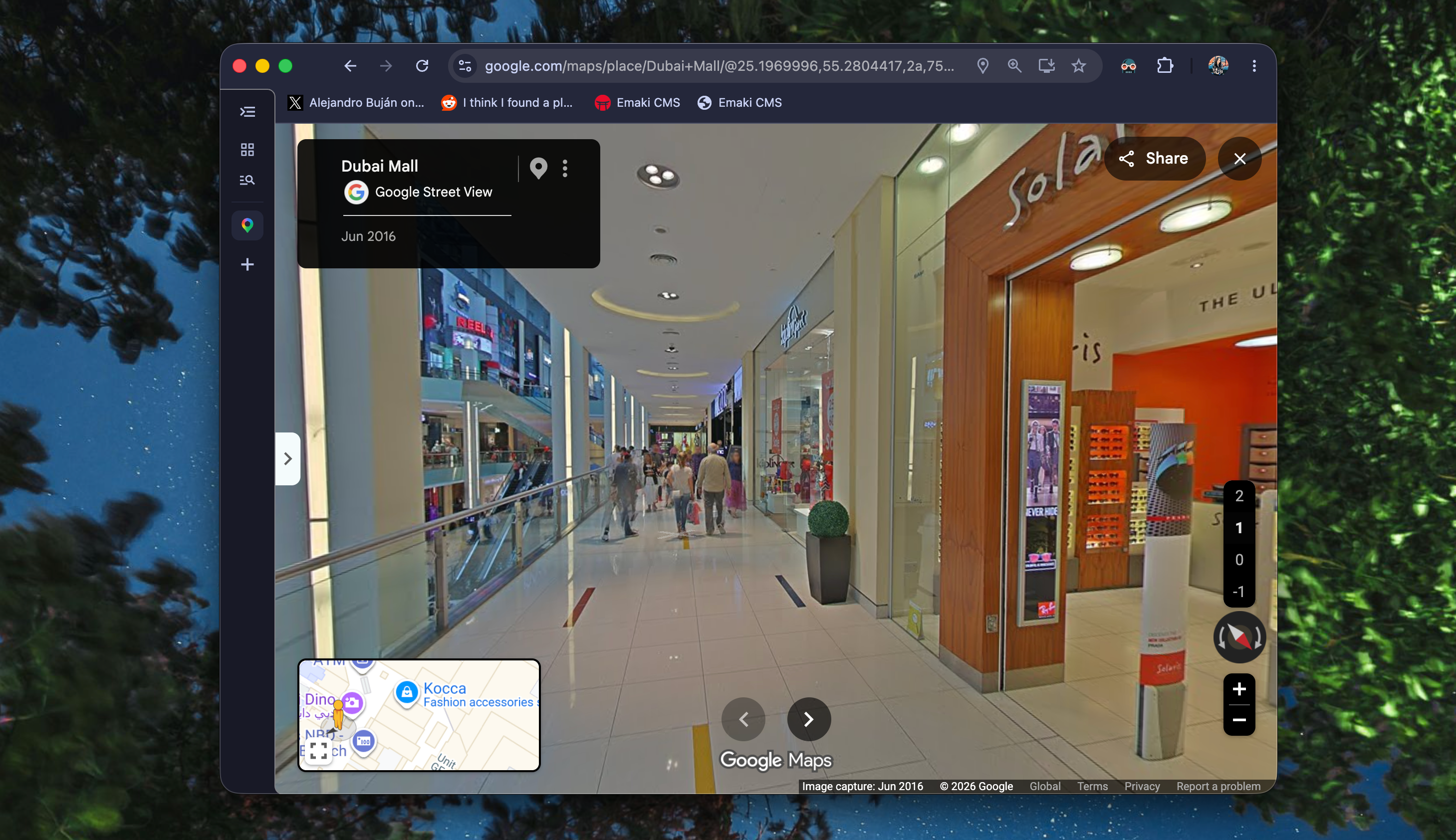
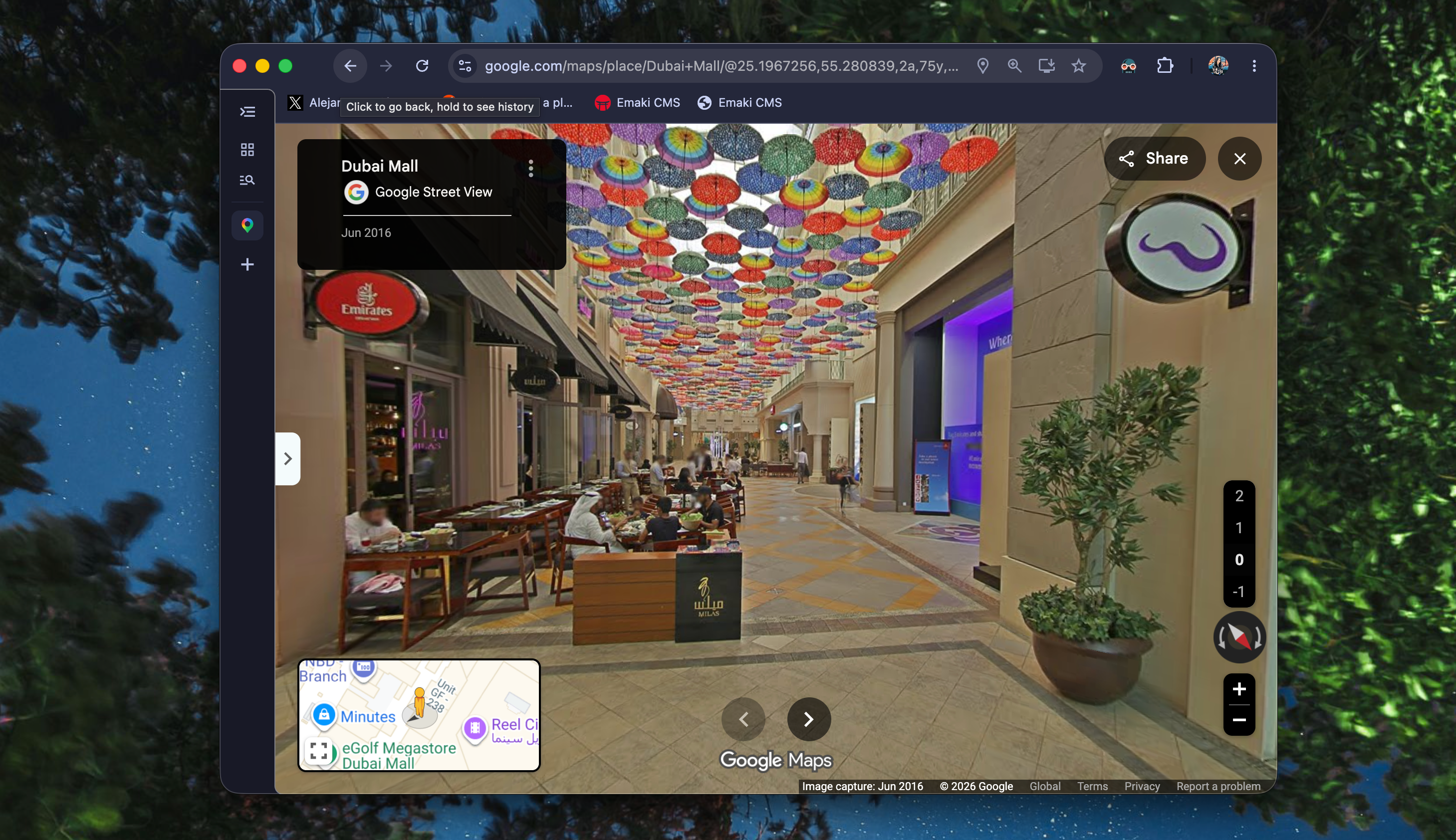
I always get lost. Always. While Google Maps comes in clutch when I'm lost on a random street, things get a little trickier once I actually arrive. I'm talking about massive shopping malls, airports, and other buildings where finding a particular store, gate, or even a restroom can feel like a challenge of its own.
I never realized Google Maps could help with that too! It has an Indoor Maps feature that lets you explore the floor plans of certain buildings, so you can figure out where everything is without having to wander around aimlessly. You can zoom in on a building to see its floor plan, including stores, restaurants, restrooms, and other facilities. You can even switch between different floors to figure out exactly where you need to go.
To try it, simply search for a shopping mall, airport, or another large building in Google Maps and zoom in. If Indoor Maps is supported, you'll see a floor plan appear, along with a floor selector that lets you explore the different levels. Unfortunately, Indoor Maps doesn't work with every building, and availability varies by location.
For instance, I traveled to Malaysia recently, and the malls there are extremely, extremely confusing. Malls quite literally link to other malls there, and I constantly found myself getting lost, trying to figure out which building I was even in, let alone where the store I was looking for was. Indoor Maps would've been a lifesaver, but unfortunately, it wasn't available for most of the malls I visited. The airport, on the other hand, was a different story.
I could zoom in on the airport in Google Maps and explore its layout, switch between different floors, and find stores, restaurants, and other facilities without having to wander around aimlessly!
Ultimately, there's a bunch of features hiding within Google Maps that you probably haven't even realized exist. And if there's one thing I've learned after years of using the app, it's that there's always something new to discover. These are just a handful of features I've come across, and I can't help but wonder what else I've been missing out on all this time.